

Inventory software for shops, stores and warehouses
Know what’s in stock, where it’s kept and what it’s worth.
DataItemize records every delivery, sale, transfer and count as it happens, so the numbers on screen match what is on your shelves — whether you run one shop or several branches and warehouses.
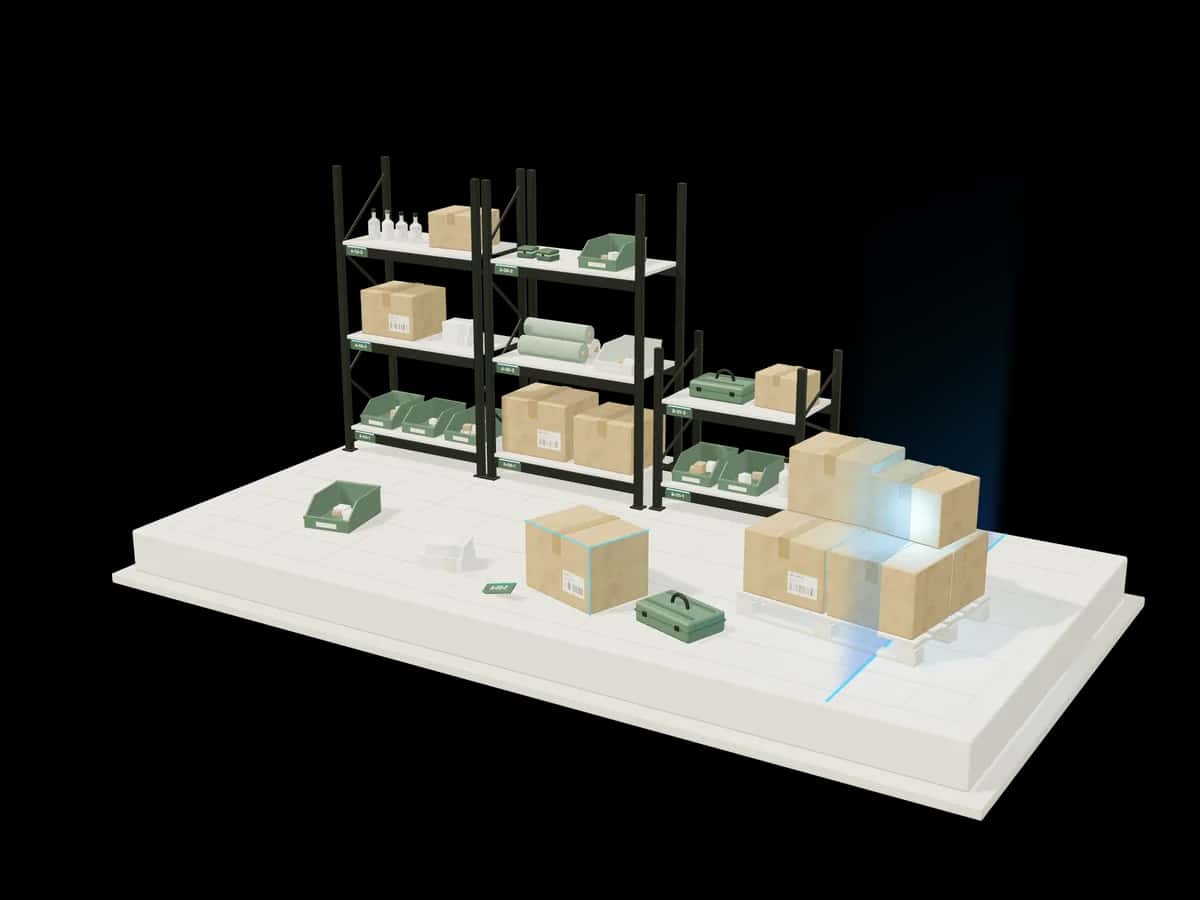
Illustration: steel shelving bays with sage bins, kraft cartons, a loaded pallet and products on an ivory plinth. A blue scan line passes over them and lights their location tags; one carton in front is tracked to location A-03-2.
The overview
See where things stand before the shop opens.
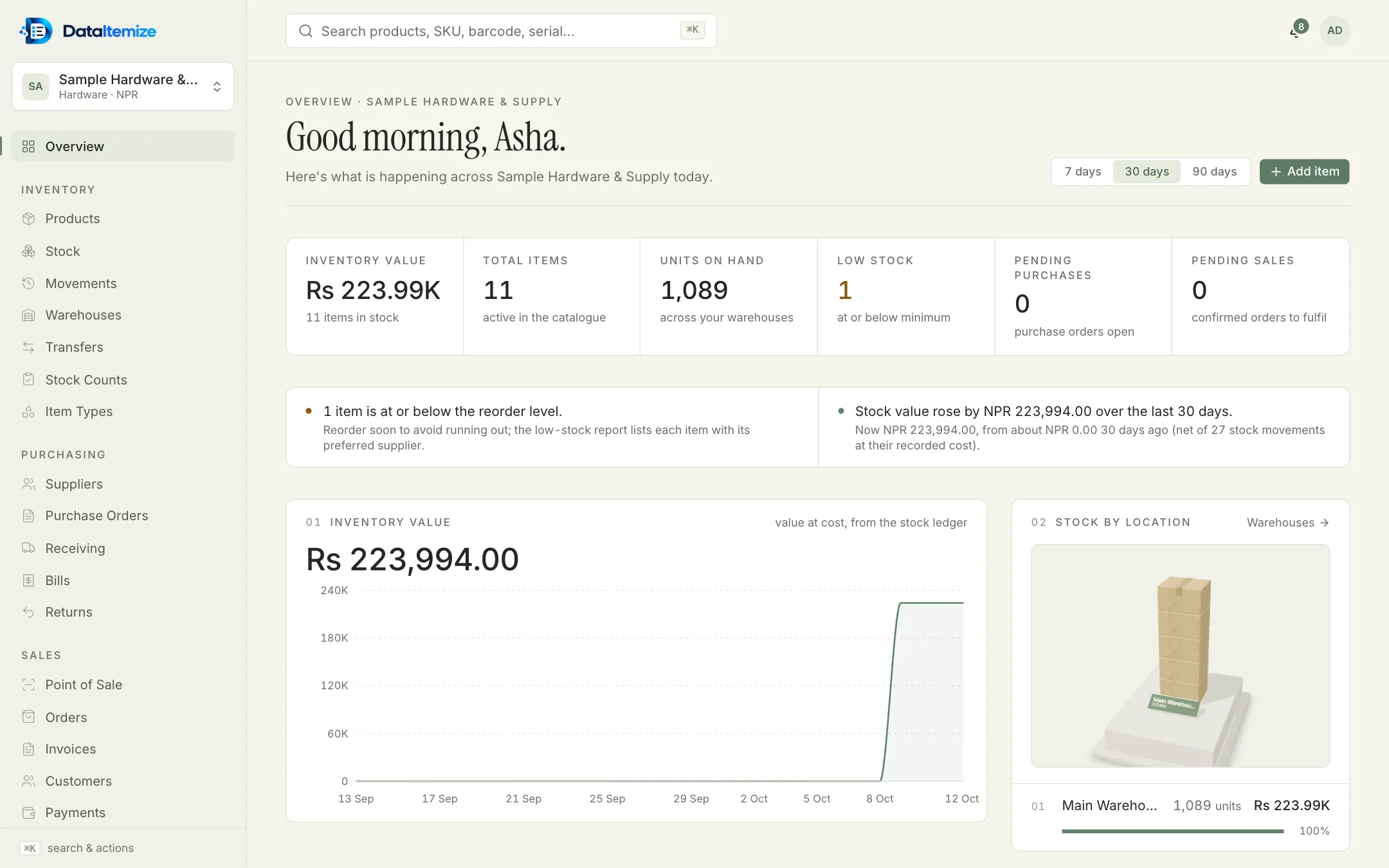
Stock value at cost, units on hand, what has fallen to its reorder level, purchase orders still open and orders waiting to go out — each with a short note on what changed.
A working day
Four ordinary jobs, and the screens you use for them.
Whatever you sell, most days are made of the same few jobs: goods come in, goods go out, stock moves between places, and now and then someone checks the shelves. This is how each one goes.
08:30
The morning delivery
A supplier drops off the cartons from last week’s purchase order. Open the order, choose Receive goods and enter what actually arrived. If two lines are short, receive the rest when it turns up — the order stays open for it.
Serial numbers, batch numbers and expiry dates are entered here for the items that use them. Once the goods are in, move them from the receiving area to the shelf or bin where they’ll be kept.
- Purchase order
- Receive goods
- Move to a shelf or bin
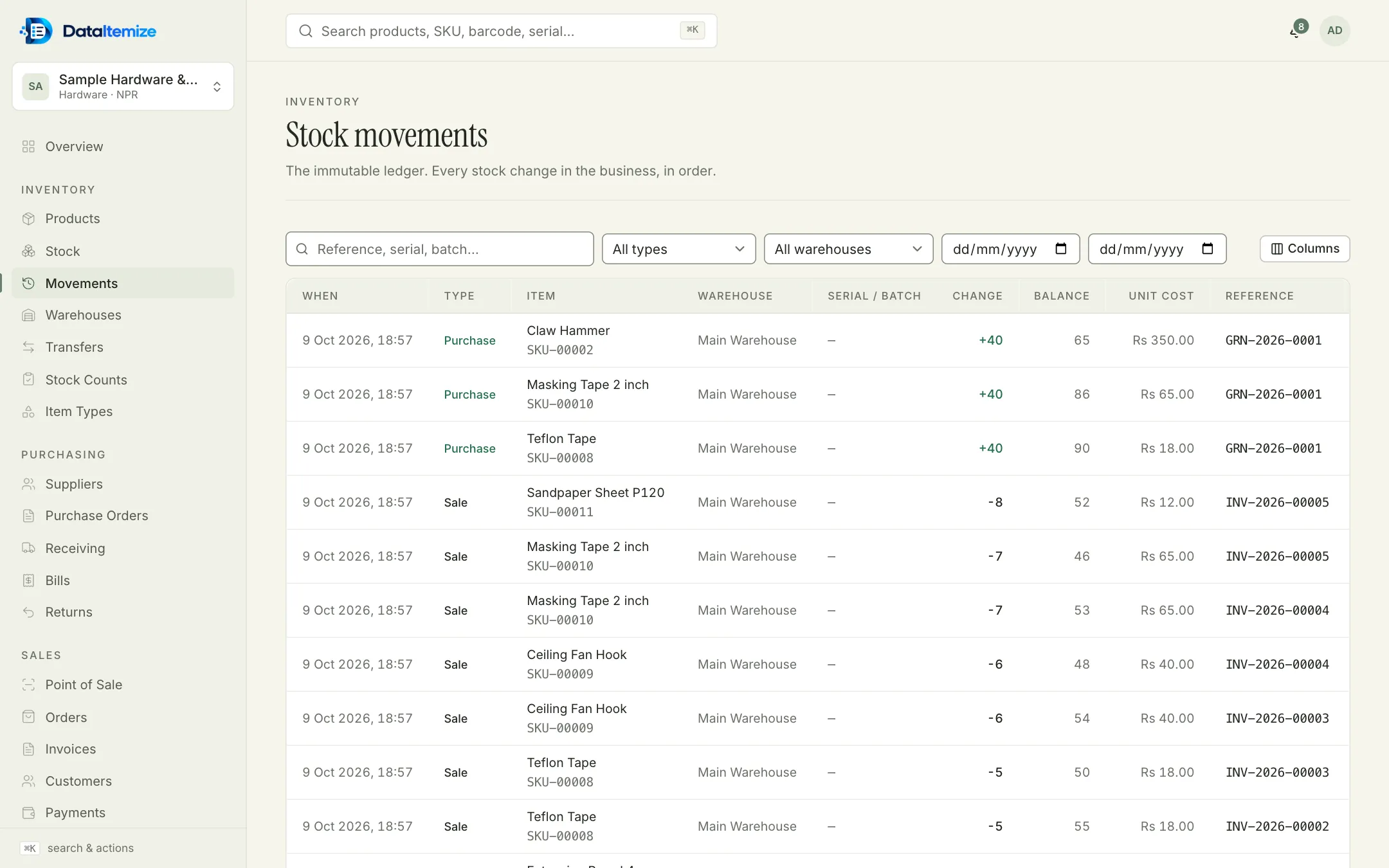
Each received line becomes a row on the movement ledger, with the balance after it and the receipt it came from. 11:15
A sale at the counter
A customer brings four things to the till. Scan each barcode, or press F2 and search by name. Change a price or add a discount on a line if you need to, then press F9 to charge — split between cash and card if that’s how they pay — and print the receipt from the browser.
Stock for those four items goes down the moment the sale is made. If the customer goes back for one more thing, hold the cart and serve the next person. Trade customers who buy on account get an invoice instead, checked against their credit limit.
- Scan or search
- Charge
- Print the receipt
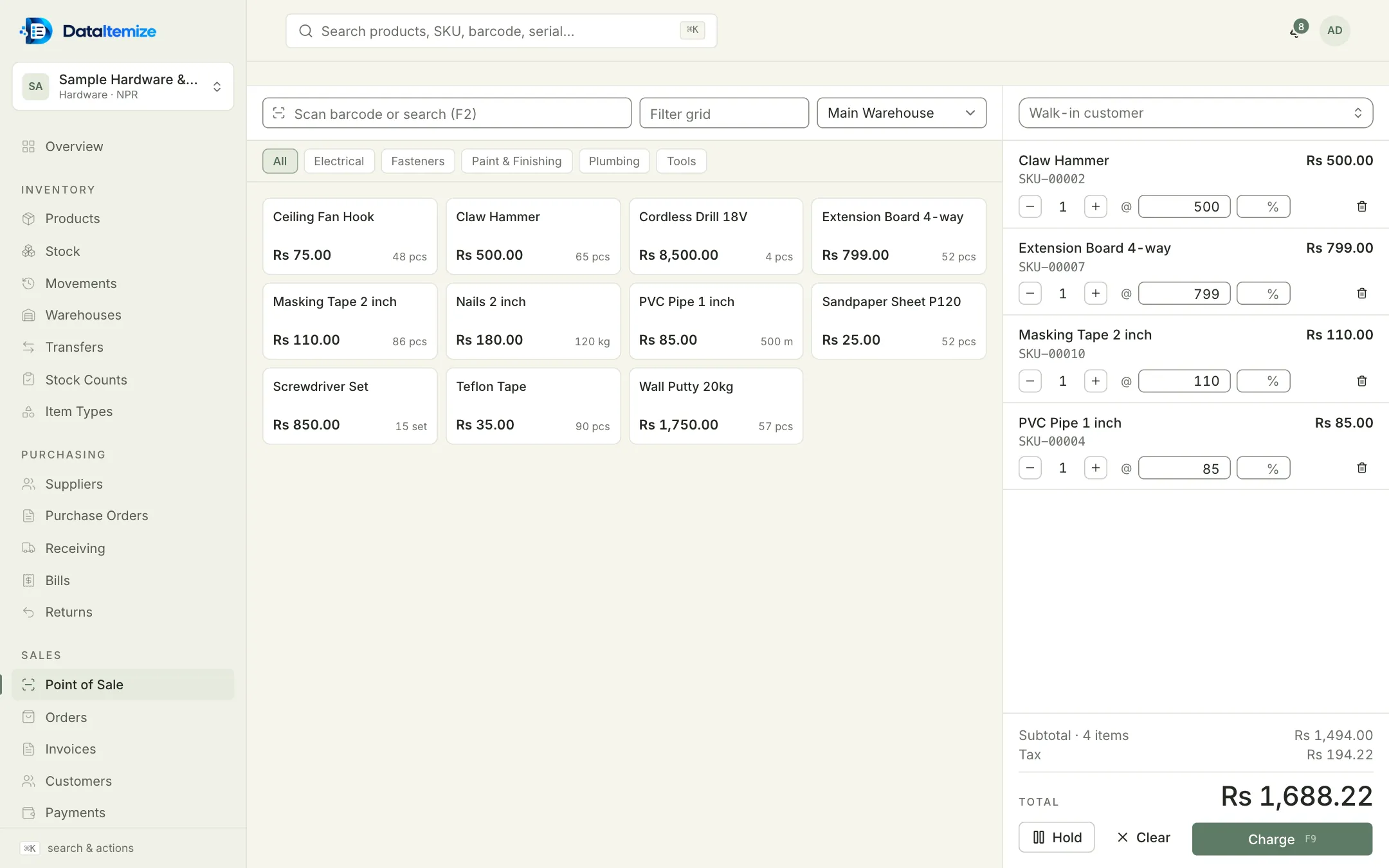
The point of sale with four items in the cart, tax added and the total ready to charge. 14:00
Stock for the other branch
The second branch is down to its last cordless drill. Raise a transfer from the main warehouse, have a manager approve it, and mark it shipped. The drills leave the main warehouse and show as in transit until the branch receives them.
Nobody needs to phone around to find out where they are: the product page shows how many are available, on hand, reserved for orders, incoming from suppliers and on the road.
- Request
- Approve
- Ship
- Receive at the branch
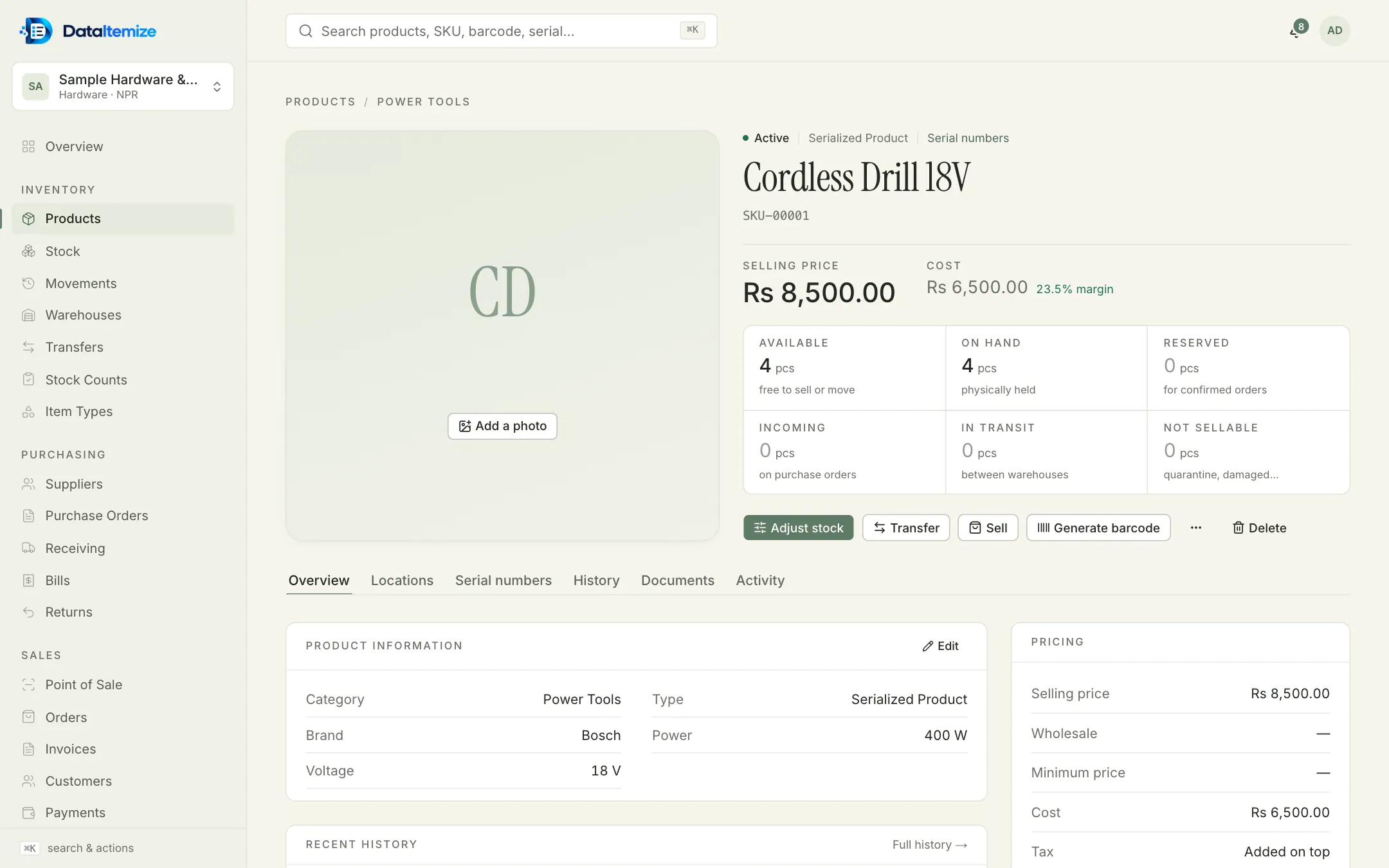
A product page. In transit is the quantity that has left one warehouse and not yet arrived at the other. Friday, 17:30
The weekly count
At the end of the week someone counts the fasteners. Start a count for a warehouse or a category, enter or scan what is on the shelf, and submit it for review.
Nothing changes until a reviewer approves. Then every difference is posted as an adjustment that refers back to the count, so next month nobody has to wonder why the nails went from 120 kg to 118.
- Start a count
- Count or scan
- Submit
- Approve
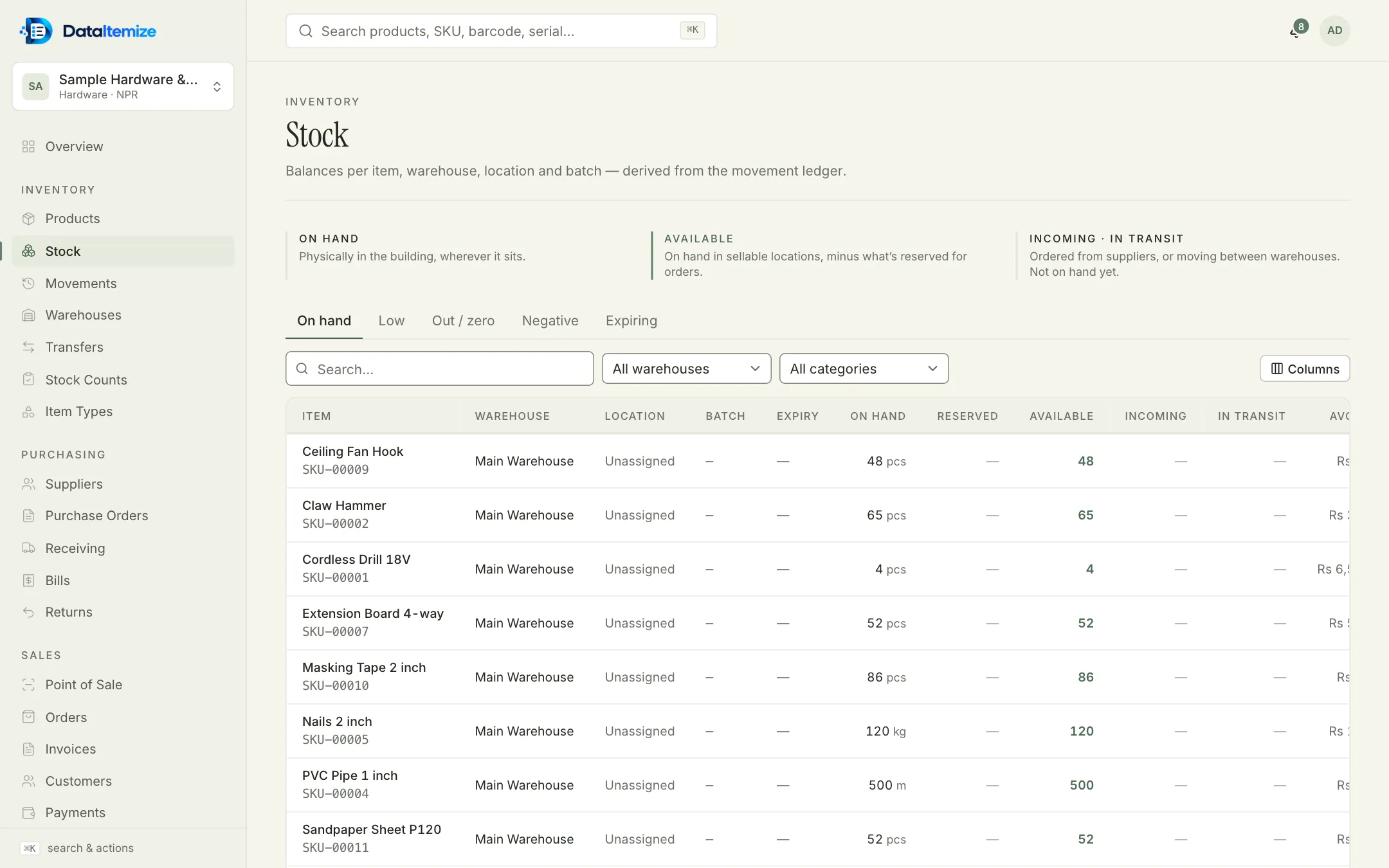
The Stock page: balances per item, warehouse and location, with tabs for low, zero, negative and expiring stock.
How it fits together
Five kinds of record, and how they connect.
Products sit in locations. Suppliers and customers send them in and take them out. Each of those events is written down as a movement, and the documents and reports are built from the movements — so the figures always trace back to something that happened.
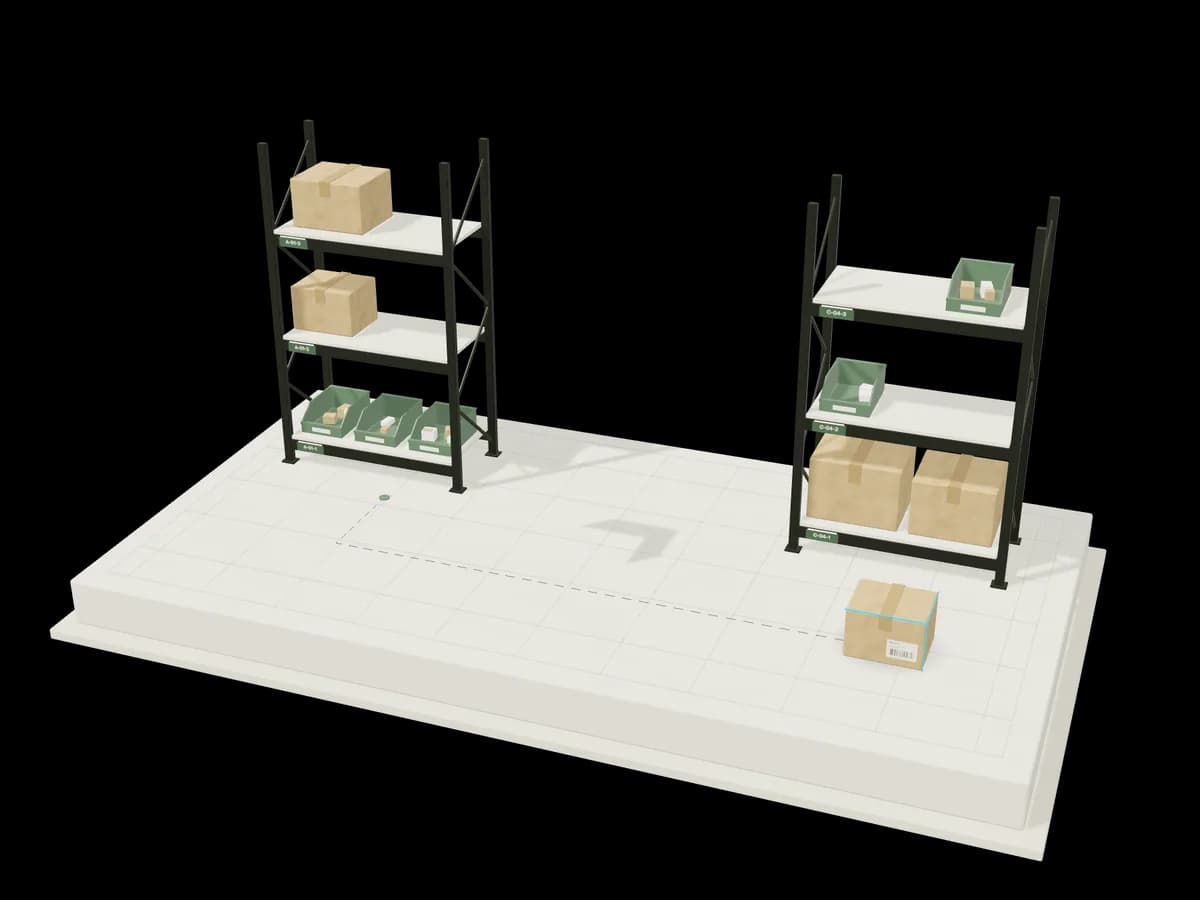
Illustration: a carton travels along a thin path from one shelving location to another, and its location tag lights when it arrives.
- Products
- Everything you stock, sell or hire out. The item type decides how it’s tracked: a plain quantity, sizes and colours, serial numbers, batches with expiry dates, or weight.
- Locations
- Each shop, branch or warehouse, divided as finely as you like — zones, aisles, racks, shelves and bins — plus places for quarantined or damaged goods that can’t be sold.
- Suppliers and customers
- Who you buy from and who you sell to: purchase orders, bills and payments on one side; quotes, orders, invoices and credit limits on the other.
- Movements
- Every receipt, sale, transfer, count and adjustment adds a row. Quantities on hand are worked out from these rows, which can’t be edited or deleted.
- Records
- Numbered documents such as GRN-2026-0001 or INV-2026-00005, an audit log of who changed what, and reports built from the same data.
Industries
Set up for the way your trade keeps stock.
A phone shop needs IMEI numbers, a jeweller weighs stock in grams and tola, a hire business has to know what is out and when it is due back. During setup you pick the closest template; you can change any of it afterwards.
- Retail shopsA counter screen for scanning and charging, with stock that follows every sale.
- Wholesale and distributionCartons and pieces, price lists, credit limits and who owes what.
- Electronics, mobile and repairsEvery unit by serial number or IMEI, with warranty and a repair desk.
- Hardware and building suppliesPipes by the metre, nails by the kilo, cement by the bag, tools by serial.
- Clothing and footwearOne style in every size and colour, each with its own stock and barcode.
- JewelleryPieces tracked one by one with metal, purity and weights; raw metal by the gram.
- RentalsBookings without double-booking, deposits, extensions and late fees.
Other templates offered during setup: Pharmacy, Auto Parts, Furniture, Manufacturing, Restaurant / Café, Hotel & Hospitality, Corporate Asset Management, General Inventory, Custom Business.
Phones and local details
On the shop floor, and in Nepali dates.
DataItemize runs in the browser, so the same account works on the office computer, a tablet at the counter and a phone in the stockroom. On a phone, a bar along the bottom keeps Scan, Transfer and Count one tap away.
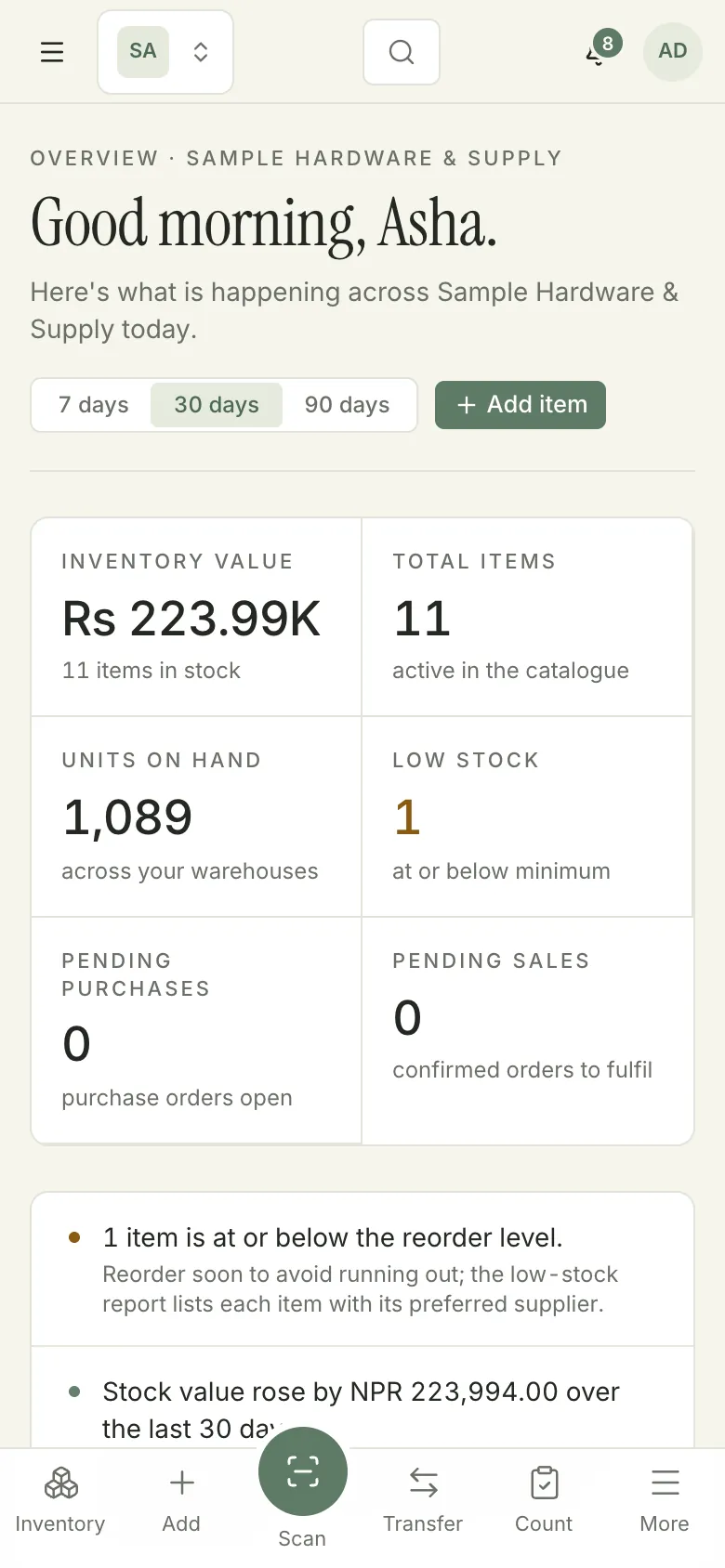
Built in Kathmandu
- Dates
- Bikram Sambat, Gregorian, or both side by side.
- Money
- NPR or another base currency; foreign-currency documents keep their exchange rate.
- Tax
- 13% VAT, zero-rated and exempt rates set up to start with, all editable.
- Units
- Tola alongside grams and kilograms, and conversions such as a carton of 24 pieces.
The interface is in English for now. It needs an internet connection; there is no offline mode yet.
Next step
Try it with sample data first.
Create an account, choose the template closest to your trade and turn on sample data at the last step of setup. Every screen is there to explore before you enter anything of your own.