

Features
What you can do with DataItemize, job by job.
Rather than a list of features, this page follows the work: adding products, buying, storing, selling, counting and reporting. Each part says how it goes in the app, then the details. What isn’t available yet is listed at the end.
Products
Adding what you sell
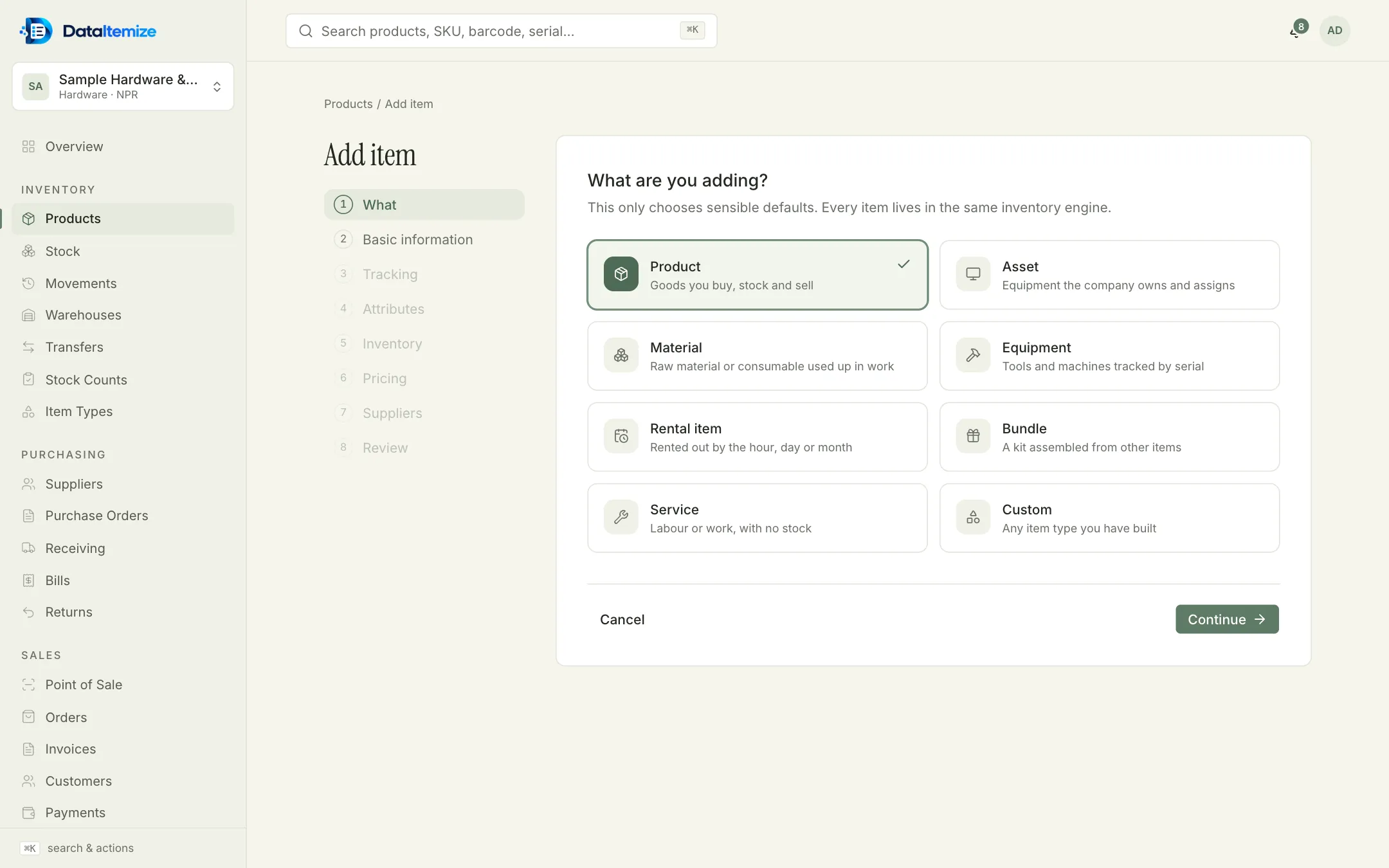
Start from the template for your trade, or import a spreadsheet of what you already have. New items go through a short wizard that asks what you’re adding and sets sensible defaults for it.
How it goes
- Choose what you’re adding: a product, material, equipment, rental item, bundle, service, company asset, or a type you built yourself.
- Fill in the basics, then choose how it’s tracked — by quantity, by size and colour, by serial number, by batch and expiry date, or by weight.
- Add the fields your trade needs, opening stock, prices and the suppliers you buy it from.
- Variants
- Pick option values such as size and colour; each combination gets its own SKU, barcode and stock.
- Custom fields
- Text, numbers, dates, dropdowns, measurements, images, files and more. Fields can be required, searchable, shown in tables or printed on invoices.
- Units
- Any unit, with conversions such as a carton of 24 pieces, business-wide or for a single item.
- Codes and photos
- SKU patterns with year, month and sequence; generated internal barcodes; up to eight photos per product.
- Bundles
- Kits made from other items, with assembly and disassembly recorded in the stock history (one level deep).
- Import and export
- Bring products in from CSV or Excel and export them whenever you like.
Buying
Ordering from suppliers and receiving the goods
A purchase order records what you asked for. When the delivery comes, you receive against it, and the stock appears in the warehouse with its cost.
How it goes
- Draft a purchase order and send it for approval; people with permission approve it and mark it ordered.
- When the delivery arrives, open the order and choose Receive goods. Enter what actually came — serial numbers, batch numbers and expiry dates too, where the item uses them.
- Receive the rest later if the delivery was short. Then post the supplier’s bill and record payments against it.
- Incoming stock
- Quantities on open purchase orders show as incoming on every product, so you can see what’s already on the way.
- Returns to suppliers
- Send goods back against a receipt; the stock leaves and the return is recorded.
- Reorder drafts
- An automation rule can draft a purchase order from the preferred supplier when an item falls below its minimum.
Storing and moving
Knowing where everything is kept
Each warehouse, shop or branch can be divided into zones, aisles, racks, shelves and bins. Quantities are kept per location, and moving stock always leaves a record.
How it goes
- Set up your warehouses and, if you need them, the locations inside each one.
- Move goods between locations in the same warehouse — from receiving to a shelf, or into quarantine.
- Between warehouses, use a transfer: request it, approve it, ship it (the stock leaves and is in transit), and receive it at the other end.
- Stock that can’t be sold
- Quarantine, damaged, inspection and repair locations hold stock outside what is available to sell.
- Reservations
- Confirmed sales orders reserve stock, so it isn’t sold twice.
- Stock history
- Every receipt, sale, transfer, count and adjustment is a row with the balance after it. Rows can’t be edited or deleted.
- Reorder levels
- A reorder level and quantity per item, and an optional rule to block negative stock per warehouse.
- Batches and expiry
- First-in-first-out or first-expiry-first-out picking, with alerts a set number of days before a batch expires.
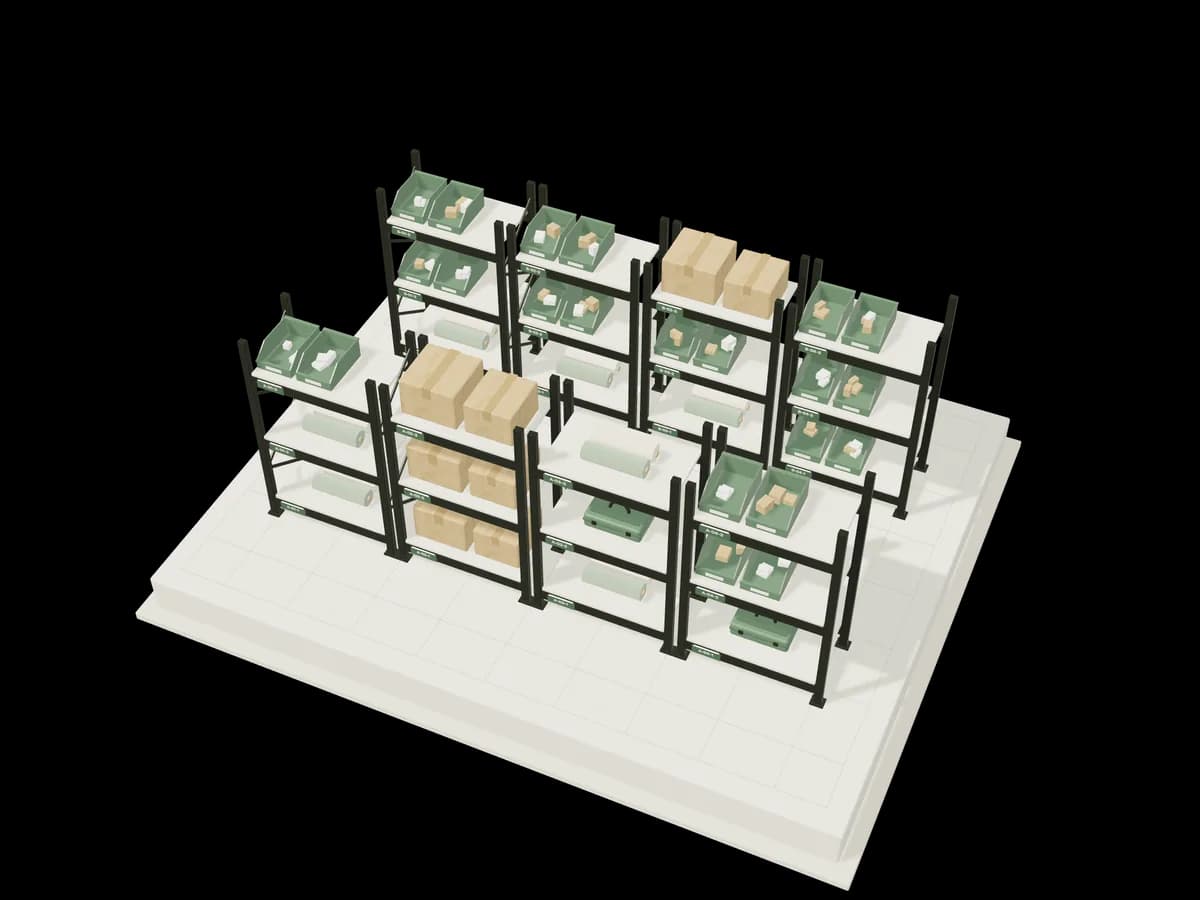
Illustration: a block of shelving aisles and bays, each bay with a location tag. Bays can be selected with the buttons provided.
Selling at the counter
Ringing up a sale
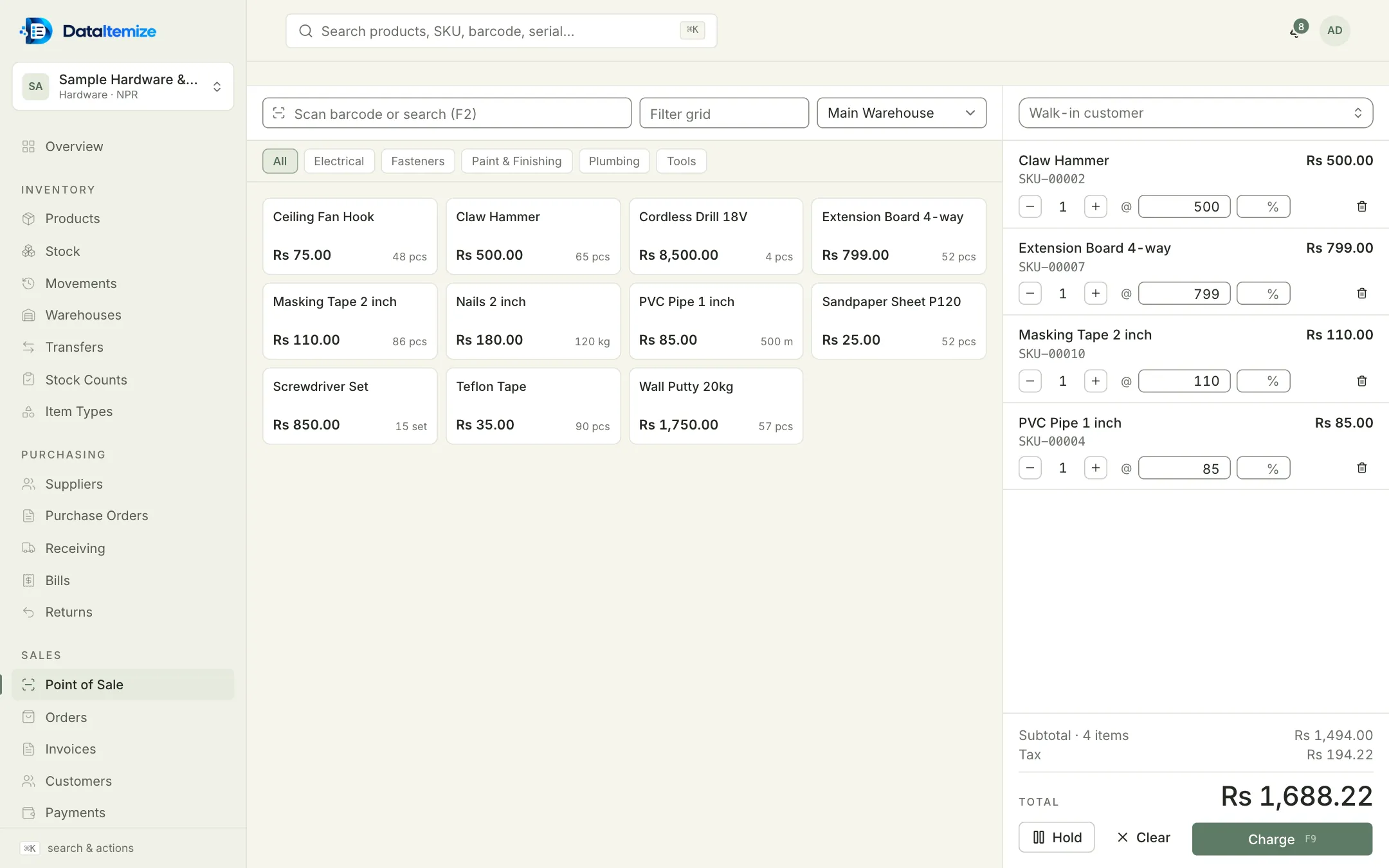
The point of sale is built for a keyboard and a barcode scanner, and works with a mouse or a touch screen too.
How it goes
- Scan a barcode, or press F2 and search by name, SKU or serial number. You can also tap products in the grid, filtered by category.
- Change the quantity, price or discount on any line; tax and the total update as you go.
- Press F9 to charge. Split the payment across cash, card, bank transfer or wallet, see the change due, and print the receipt from the browser.
- Hold and resume
- Park a cart while a customer fetches something else, and come back to it. Held carts stay in that browser.
- Customers
- Sell to a walk-in customer or pick a saved one.
- Returns
- Record a return against the invoice and choose whether the goods go back into stock.
Selling on account
Quotes, orders and invoices for trade customers
For customers who buy on credit, by quotation or in bulk.
How it goes
- Send a quote. When the customer accepts, confirm it as a sales order — that reserves the stock.
- Invoice the order, or write an invoice directly. An invoice that would take the customer past their credit limit is refused.
- Record payments against one or more invoices. Overdue invoices are flagged automatically.
- Price lists
- Retail, wholesale and customer-specific lists, assigned to customers.
- Taxes
- Rates and rules, prices with or without tax. 13% VAT, zero-rated and exempt are set up to start with.
- Currencies
- Documents in any currency, with the exchange rate kept on each one.
Scanning
Finding things by the code on them
Most screens accept a scan wherever you can type.
- Camera
- The Scan screen reads EAN-13, EAN-8, UPC-A, UPC-E, Code 128, Code 39, ITF, QR and Data Matrix codes with a phone or laptop camera.
- Scanners
- USB and Bluetooth barcode scanners work in any search field.
- Search
- Cmd/Ctrl+K searches products, SKUs, barcodes and serial numbers from anywhere in the app.
- Labels
- Code 128 labels at 38×25, 50×30 or 70×40 mm, with or without the price, printed from the browser.
Counting
Checking the shelves against the screen
Counts and adjustments are how the records are put right when the shelf and the screen disagree.
How it goes
- Start a count for a warehouse or a category.
- Enter what you find, or scan items one by one — each scan adds one.
- Submit it for review. Nothing changes until a reviewer approves; then each difference is posted as an adjustment that refers back to the count.
- Adjustments
- Damage, loss, found, used up, or a plain correction — each needs a written reason.
- Who can approve
- Approving counts is a separate permission, so the person counting doesn’t have to be the one who signs it off.
Reports
Seeing what it’s all worth
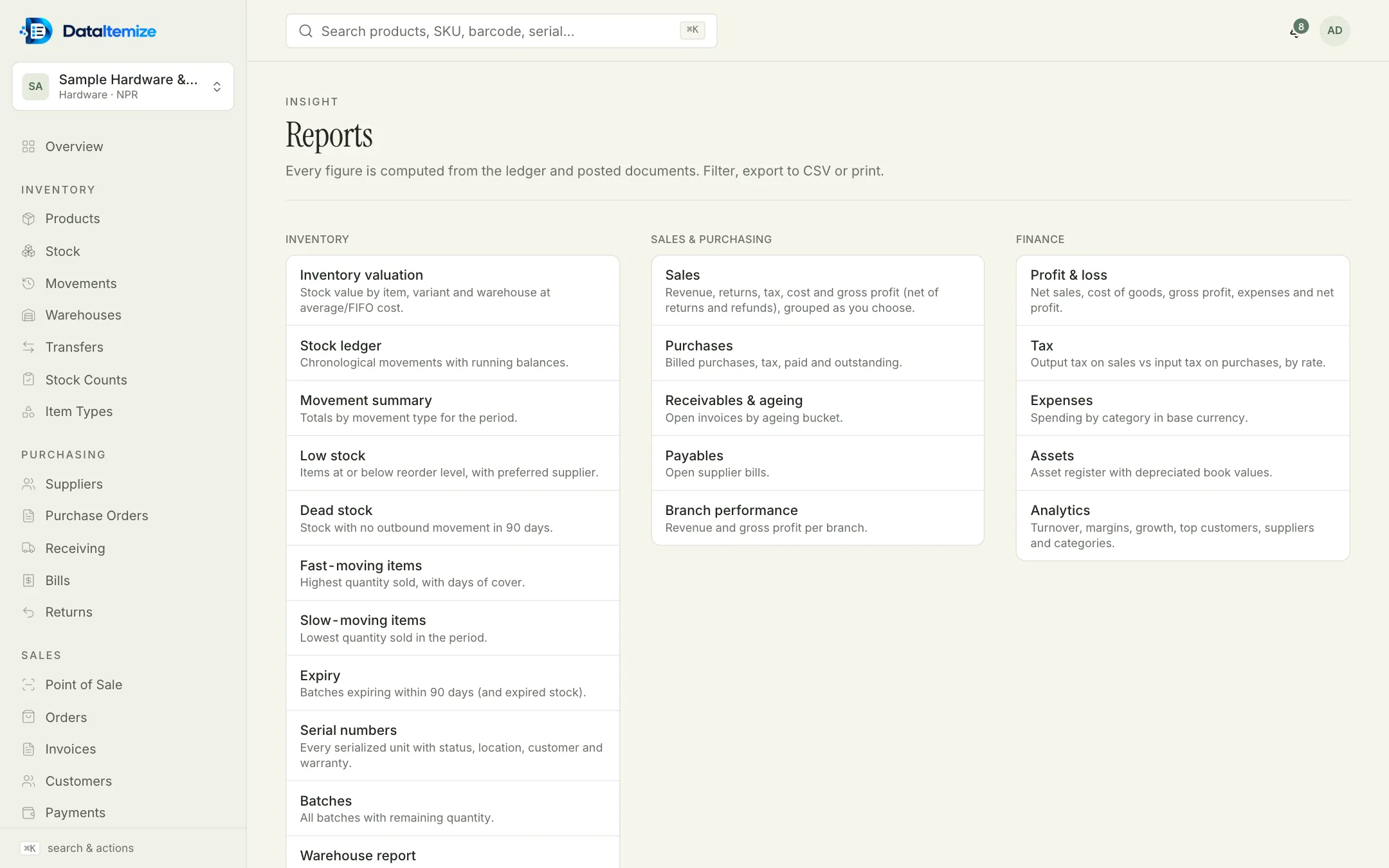
Every figure is worked out from the stock history and the documents you’ve posted. Filter a report, print it or download it as CSV.
- Stock
- Valuation, stock history, movement summary, low stock, dead stock (items still in stock with no outgoing movement of any kind — sale, transfer or adjustment — in the last 90 days), fast- and slow-moving items, expiry, serial numbers, batches and per-warehouse totals.
- Sales and buying
- Sales by day, month, customer or item; purchases; receivables with ageing; payables; branch performance.
- Money
- Profit and loss, tax, expenses, the asset register with depreciated values, and an analytics summary.
- Costing
- Weighted average, FIFO, standard cost, or specific identification for serial-numbered items.
- The overview
- Stock value, items, units on hand, low stock, open purchase orders and orders to fulfil, with a note on what changed.
Your team
Giving each person what their job needs
Menus hide what someone’s role can’t do, and the server refuses it regardless.
- Roles
- Owner, Admin, Manager, Staff, Inventory Manager, Warehouse Staff, Sales Staff, Purchasing Staff, Accountant and Viewer — or a role of your own with individual permissions.
- Scoped access
- Limit people to particular businesses and warehouses.
- Invitations
- Invite by email; links expire after seven days and can be withdrawn.
- Audit log
- Who changed what, and when. Audit entries can’t be edited or deleted.
- Several businesses
- One login can run more than one business, each with its own template, stock and settings.
Optional modules
Assets, rentals, repairs and expenses
Switch these on for a business that needs them; when they’re off, they disappear from the menus.
- Assets
- Assign equipment to people, take it back, dispose of it, and depreciate it straight-line or declining-balance.
- Rentals
- Bookings with a double-booking check, deposits, extensions, late fees and damage charges, then an invoice.
- Repairs
- Jobs from received to delivered, with parts taken from stock and an invoice at the end.
- Expenses
- Recorded by category, and included in the profit and loss and expense reports.
Automation
Rules, notifications and connections
Rules are built from a trigger, conditions and an action — no code.
- Triggers
- Stock below minimum, batch expiring, rental due, goods received, sale made, transfer received, count waiting for approval.
- Actions
- An in-app notification, an email, a webhook, or a draft purchase order from the preferred supplier.
- Live screens
- Choose email and in-app notifications per event. Screens update when someone else changes the data.
- API, webhooks and Ask AI
- API keys, signed webhooks, and Ask AI — plain-language questions about your stock and sales, answered from your data without changing anything. These aren’t switched on for every account; get in touch if you need them.
Local details
Dates, money and devices
It runs in the browser on a computer, tablet or phone.
- Calendars
- Bikram Sambat, Gregorian, or both side by side; BS month names in English or Nepali script.
- Currency and year
- A base currency per business, common currencies set up, and your own fiscal-year start month.
- Phones
- A bottom bar with Inventory, Add, Scan, Transfer and Count.
Your data
Keeping each business’s data separate
What we do so that your records stay yours and stay accountable.
- Separation
- Every request is checked on the server against the business and the person’s access; another business’s data can’t be loaded.
- Sign-in
- Passwords are stored hashed; repeated failed sign-ins pause the account for 15 minutes. You can sign out other sessions from your profile.
- Exports
- Export products and reports whenever you like.
Not available yet
What DataItemize doesn’t do today.
People ask for these. If one of them decides whether DataItemize will work for you, write to us before you start.
- Offline mode — the app needs an internet connection
- Native iOS or Android apps (the web app works on phones)
- Two-factor authentication and single sign-on
- Requests for quotation (RFQ) to suppliers
- Separate credit-note documents
- Multi-level bills of materials and work orders
- PDF export (print to PDF from your browser instead)
- Saved or scheduled reports
- QR-code label printing
- A Nepali-language interface
- Accounting-ledger integration
- Cash-drawer and shift closing
Next step
Try it with sample data first.
Create an account, choose the template closest to your trade and turn on sample data at the last step of setup. Every screen is there to explore before you enter anything of your own.