

Product tour
A walk through the app, screen by screen.
These are real screenshots of DataItemize. Each stop says what the screen is for and what to look at.
There’s no shared demo login. To try it yourself, create an account and turn on Load demo data at the last step of setup.
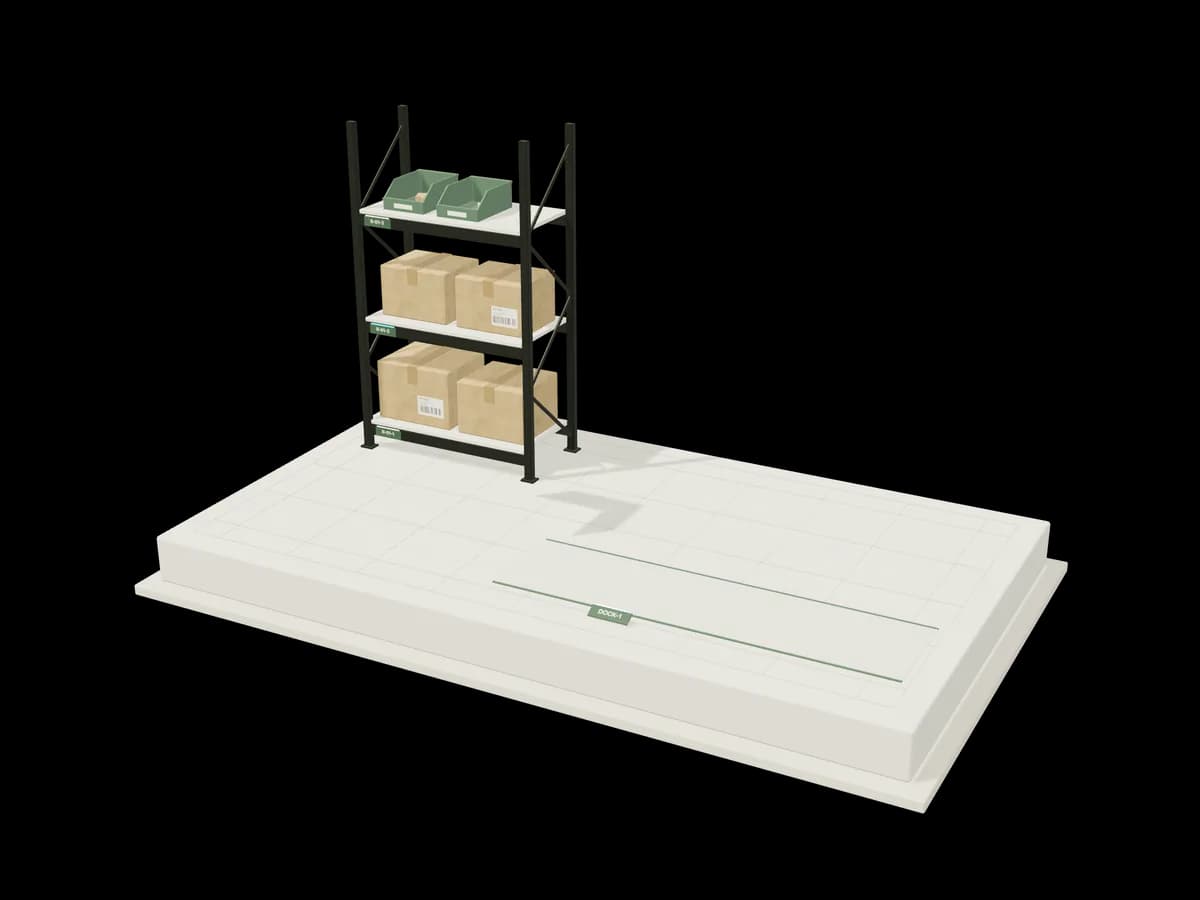
Illustration: cartons on a pallet beside a shelving bay, with a dashed path showing them being put away into a tagged bay.
Part 1 of 5
Setting up
Stop 1 of 11
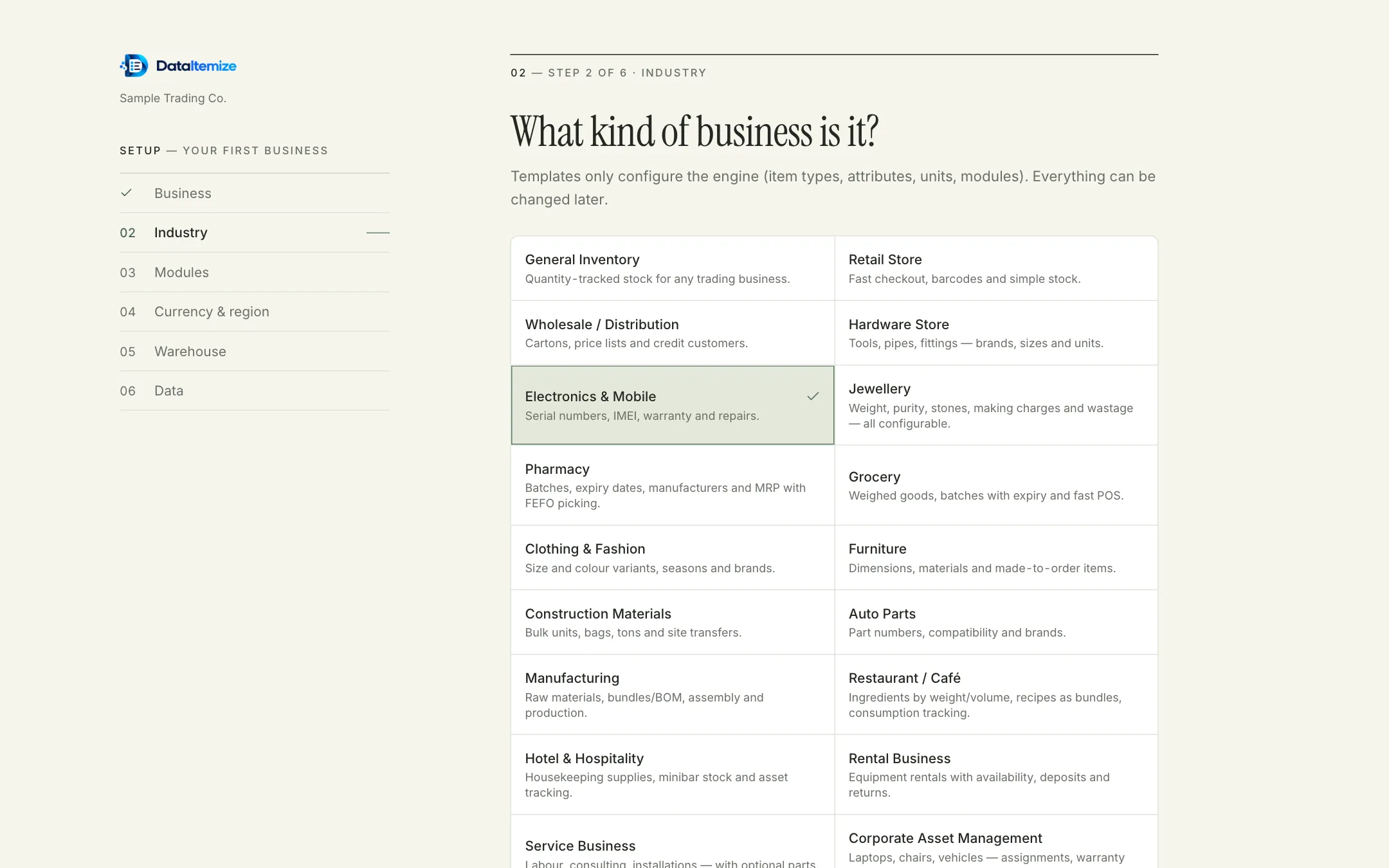
Choose a template
Setup asks what kind of business you run. The template decides the starting item types, fields, units and modules — the jewellery template adds purity and tola, electronics adds IMEI numbers. All of it can be changed later.
Look for
- Six short setup steps down the left
- Each template says in one line what it sets up
Stop 2 of 11
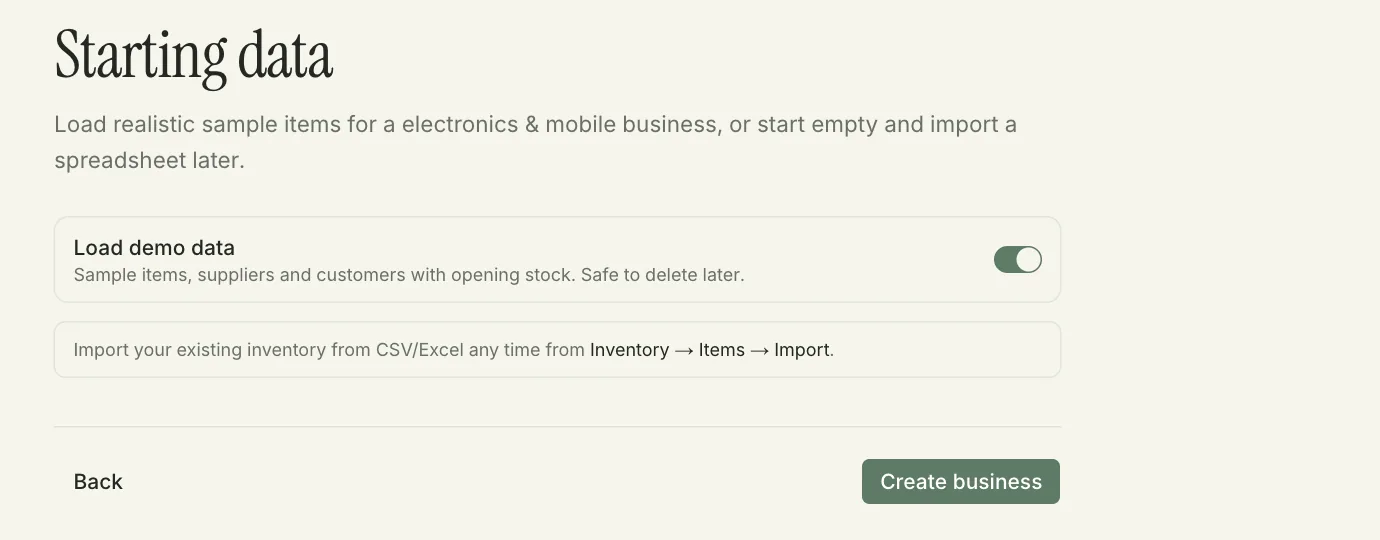
Start with sample data
The last step offers sample items, suppliers and customers with opening stock, so you can try every screen before entering anything real. You can delete it later, or skip it and import a spreadsheet instead.
Look for
- The Load demo data switch
- Where to import your own list later: Inventory → Items → Import
Part 2 of 5
Finding your way
Stop 3 of 11
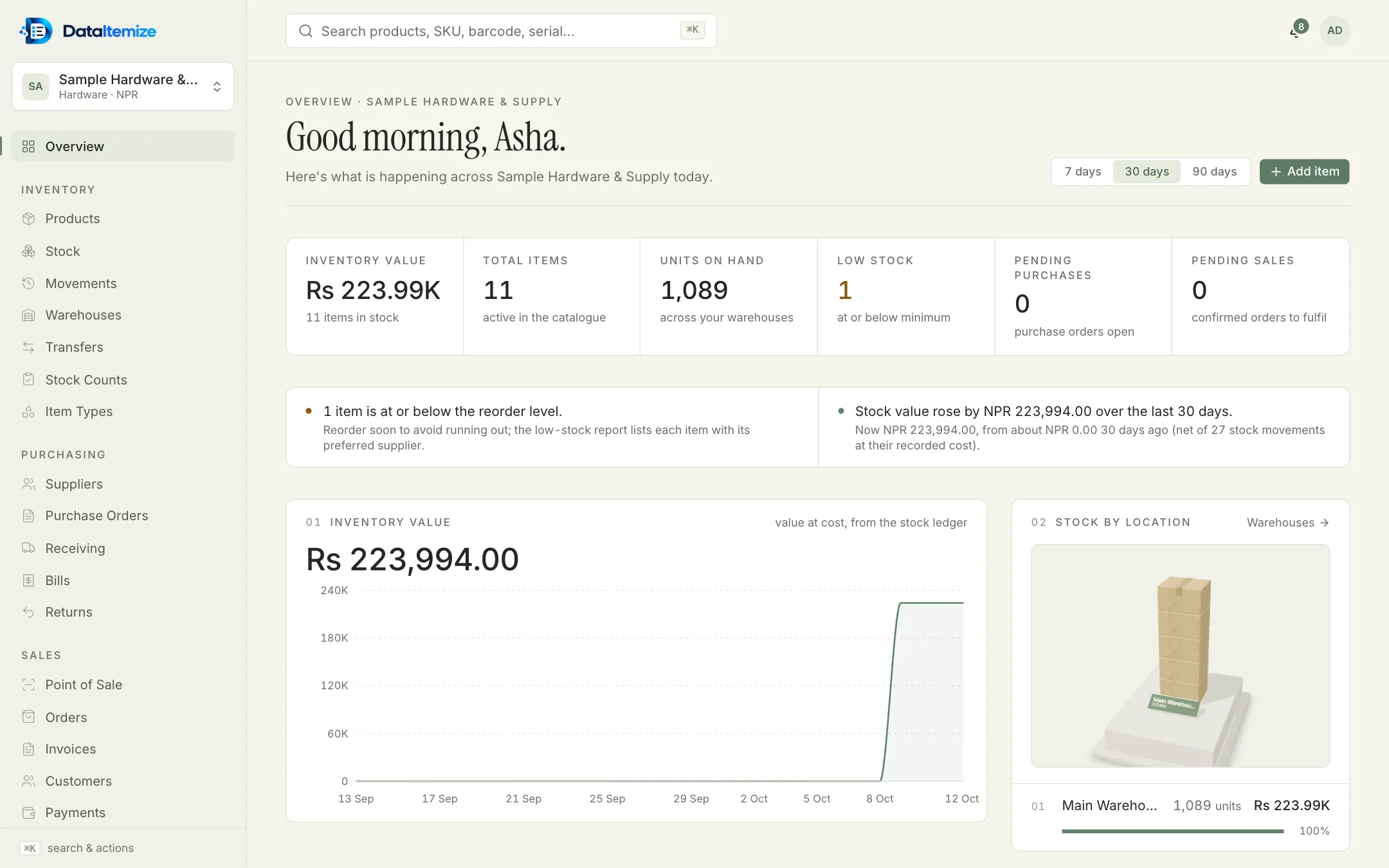
The overview
The first screen of the day. The rest of this tour uses a sample hardware business created with that demo data; the business, people and figures are fictional.
Look for
- Stock value, units on hand and low stock along the top
- Plain notes on what changed and why
- Stock by location, drawn from real warehouse values
Stop 4 of 11
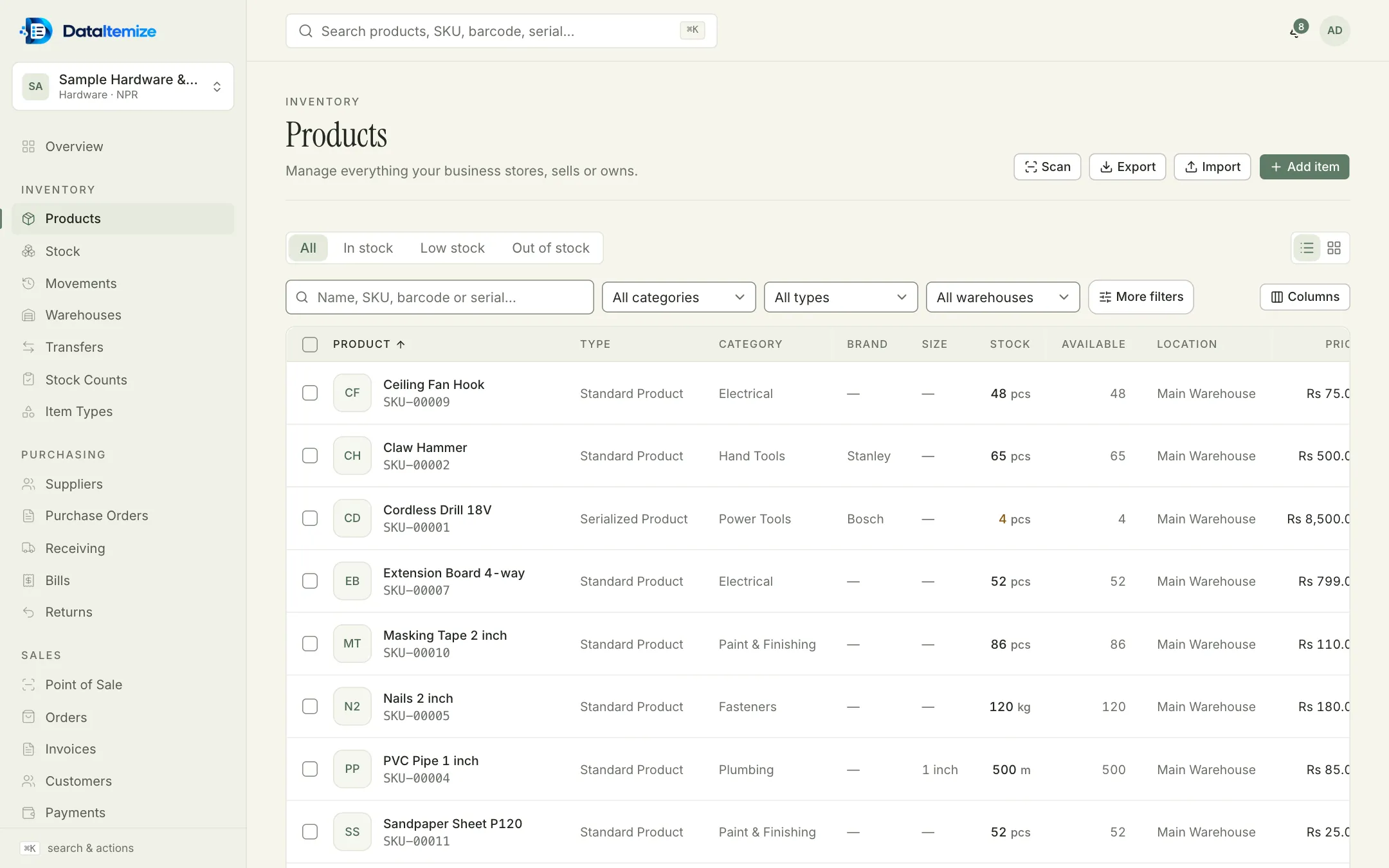
Products
Everything the business stocks, sells or owns. Search by name, SKU, barcode or serial number; filter by stock status, category, type and warehouse; and choose which columns to show.
Look for
- Scan, Export, Import and Add item at the top right
- In stock, Low stock and Out of stock tabs
- The cordless drill’s low stock shown in amber
Stop 5 of 11
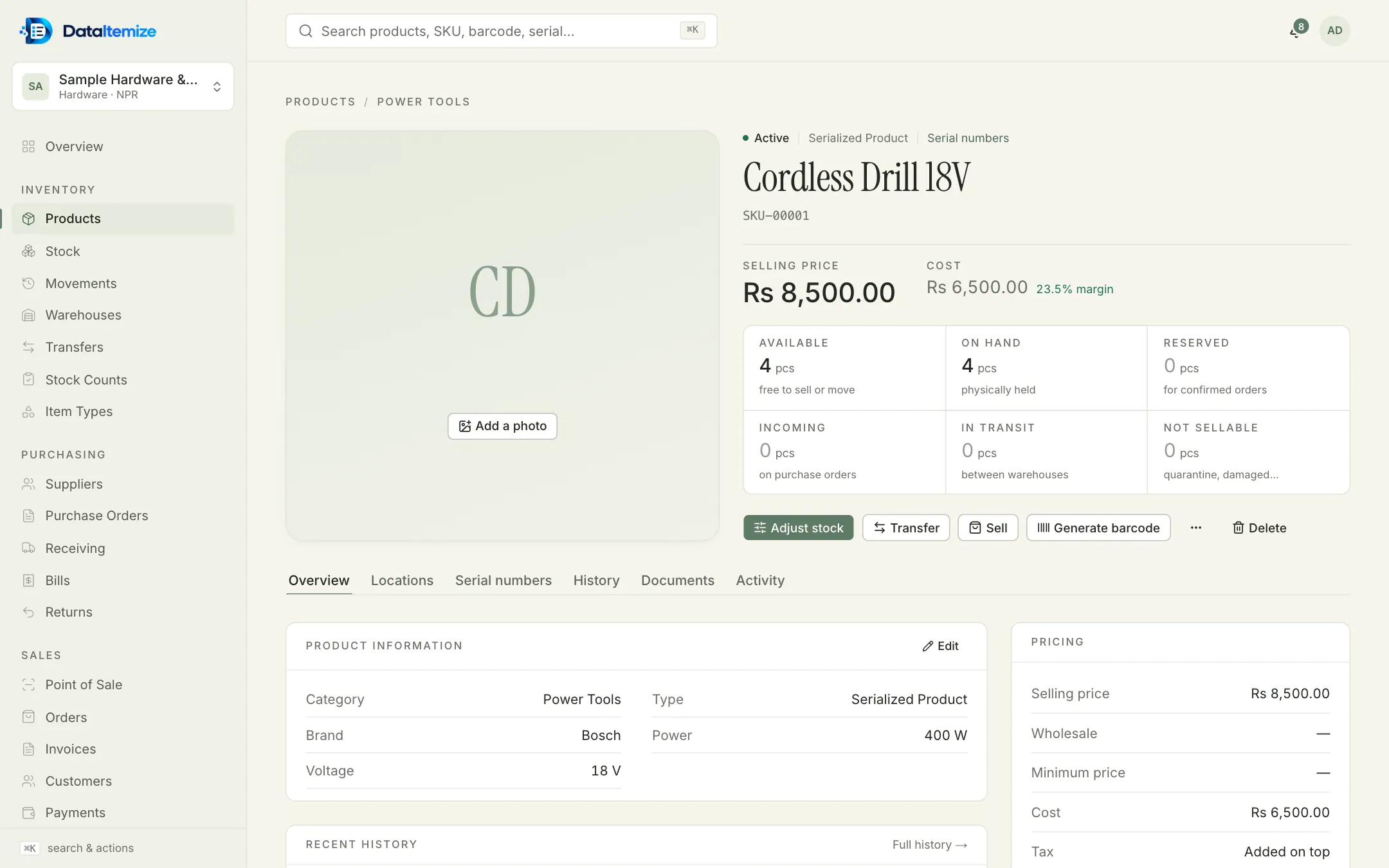
One product
A product page explains its quantities instead of showing one number: what’s free to sell, what’s physically held, and what’s reserved, incoming, on the road or set aside.
Look for
- Six quantities: available, on hand, reserved, incoming, in transit, not sellable
- Adjust stock, Transfer, Sell and Generate barcode
- Tabs for locations, serial numbers, history and documents
Part 3 of 5
Stock
Stop 6 of 11
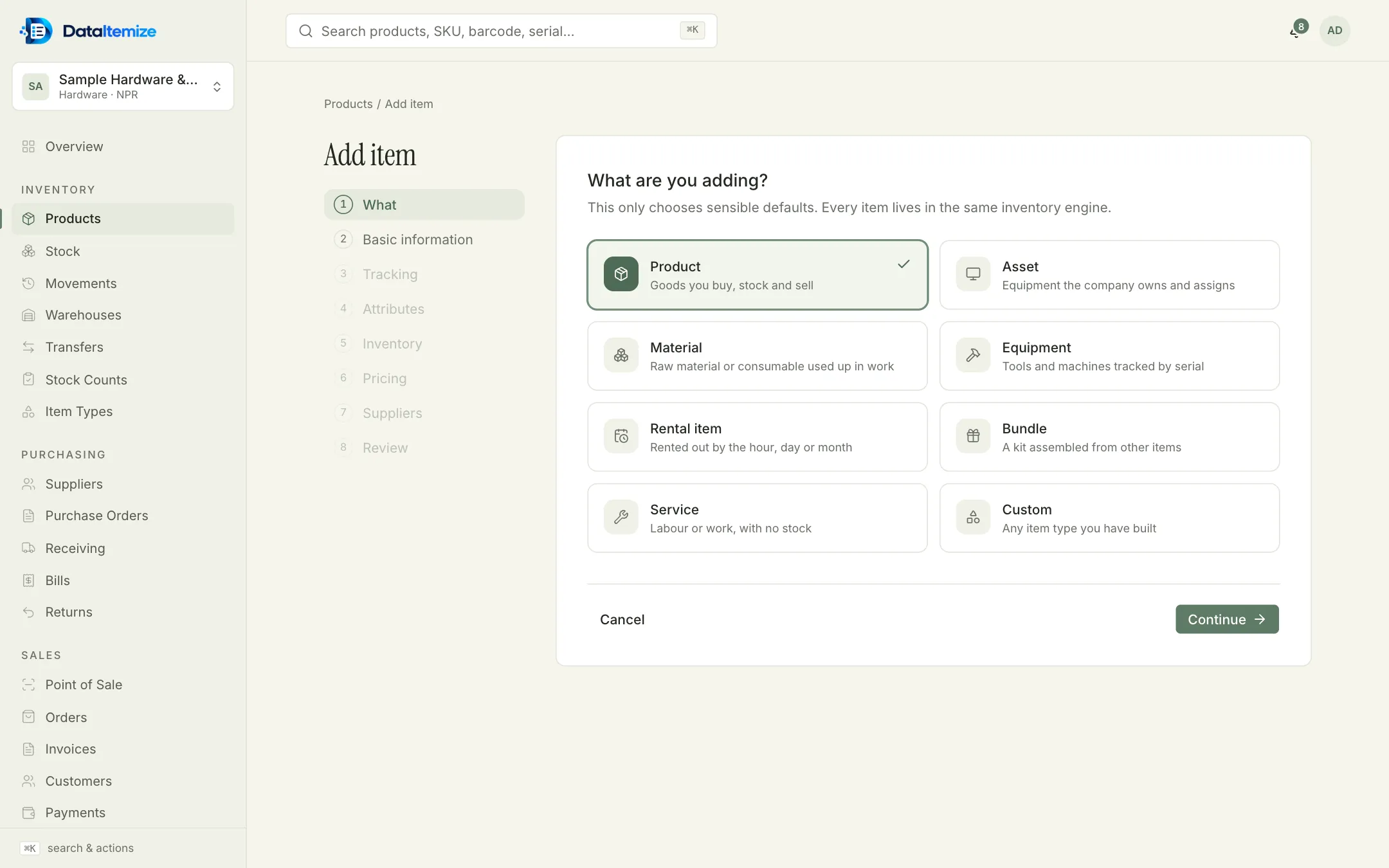
Adding an item
The wizard starts by asking what you’re adding, then goes through basic information, tracking, attributes, opening stock, pricing and suppliers before a final review.
Look for
- Eight steps listed on the left
- Product, asset, material, equipment, rental item, bundle, service or a custom type
Stop 7 of 11
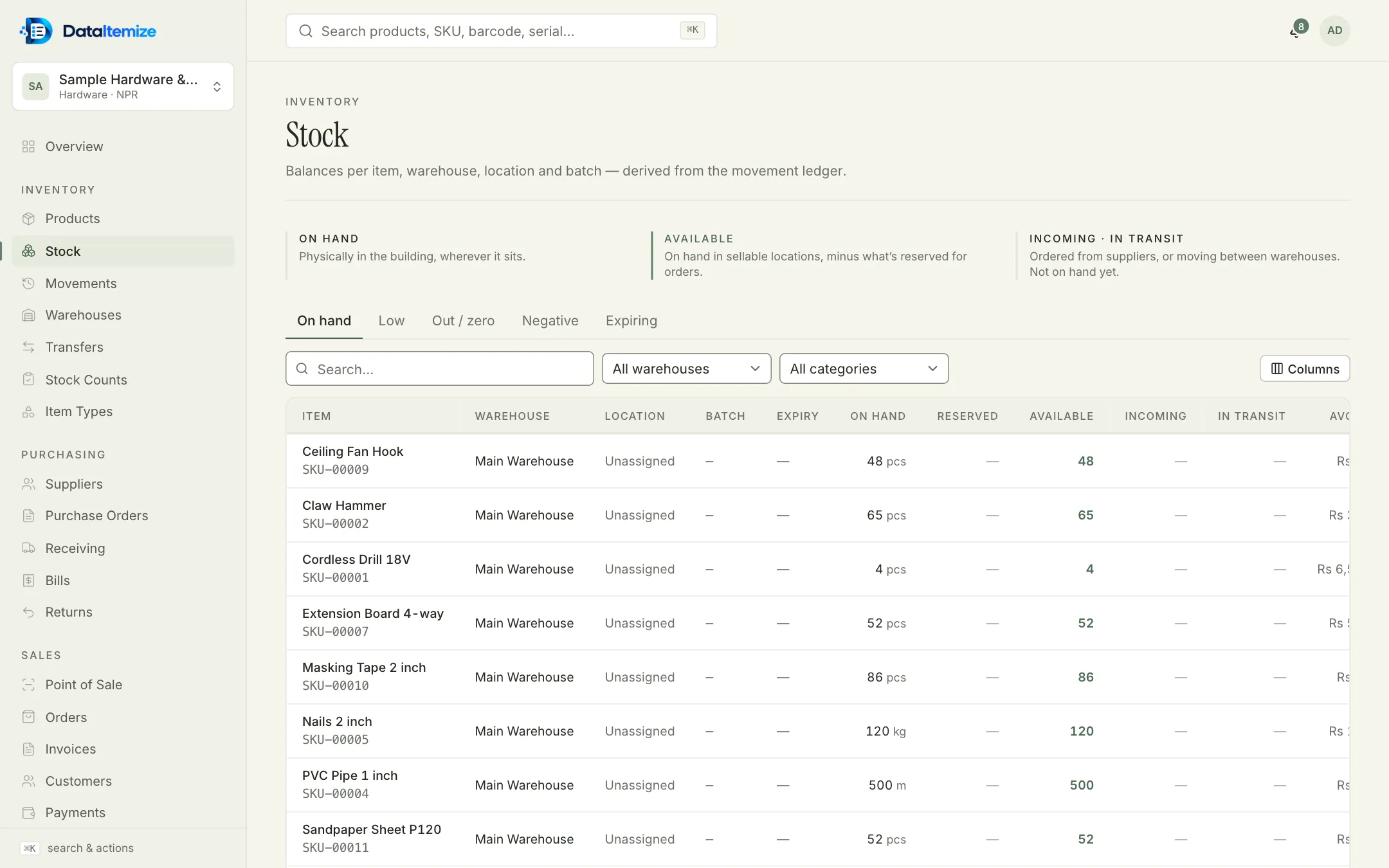
Stock by location
Balances for every item in every warehouse and location, with batch and expiry where they apply. New stock sits in Unassigned until it’s moved to a shelf or bin.
Look for
- What on hand, available and incoming mean, explained above the table
- Tabs for low, zero, negative and expiring stock
Stop 8 of 11
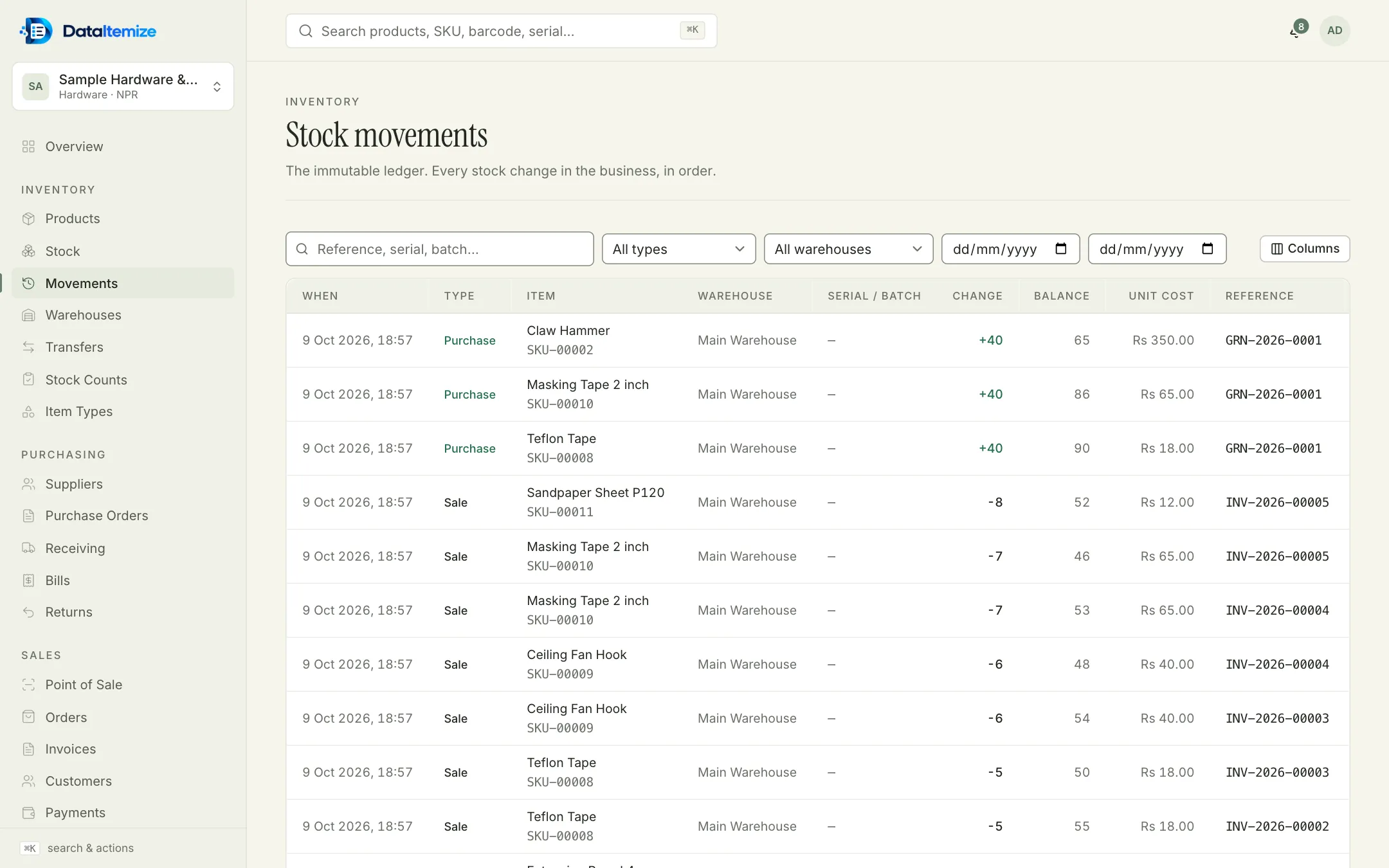
The movement history
Every change to stock, in order, with the balance after it and the document that caused it. These rows can’t be edited or deleted, so the history always adds up.
Look for
- Purchase rows of +40 from receipt GRN-2026-0001
- Sale rows referencing invoices
- The balance after each row
Part 4 of 5
Selling and reporting
Stop 9 of 11
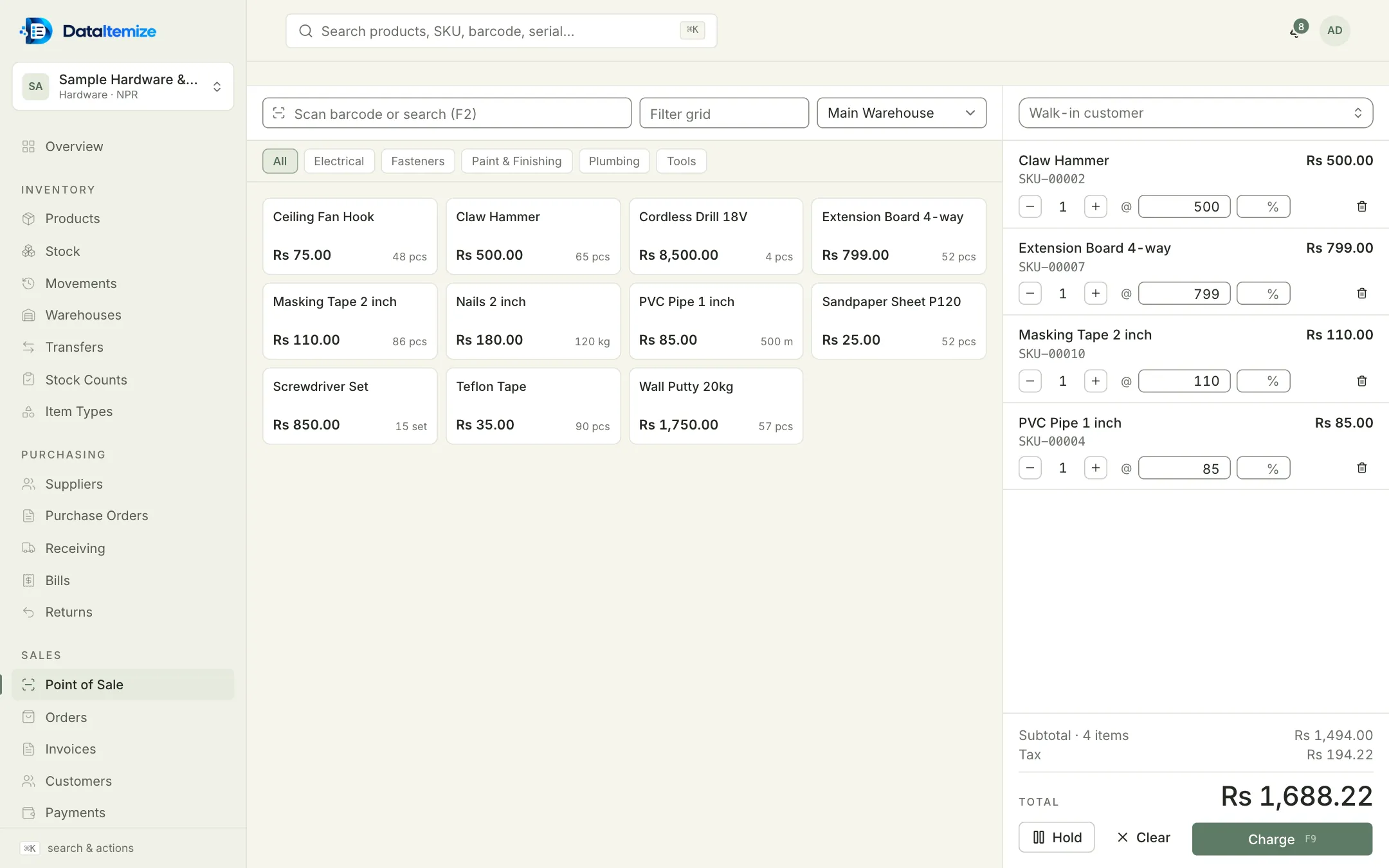
Point of sale
Scan or search, tap products in the grid, change price or discount per line, then charge — across one payment method or several.
Look for
- Scan barcode or search (F2)
- Category filters above the product grid
- Hold, Clear and Charge (F9) under the total
Stop 10 of 11
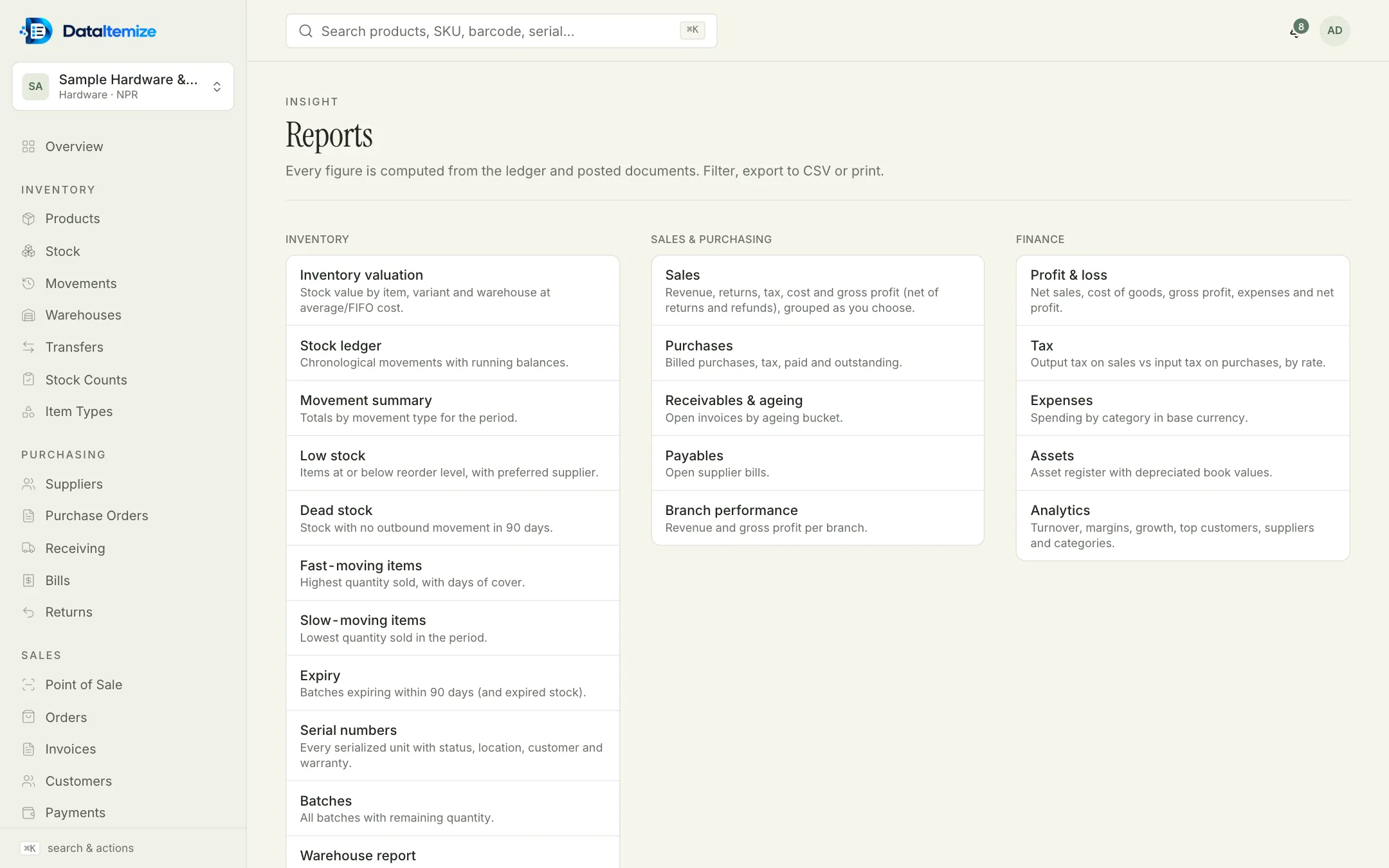
Reports
Reports for stock, sales and purchasing, and money, each worked out from the same history. Filter, print, or download as CSV.
Look for
- Valuation, low stock, dead stock and expiry under Inventory
- Receivables and ageing
- Profit and loss under Finance
Part 5 of 5
On a phone
Stop 11 of 11
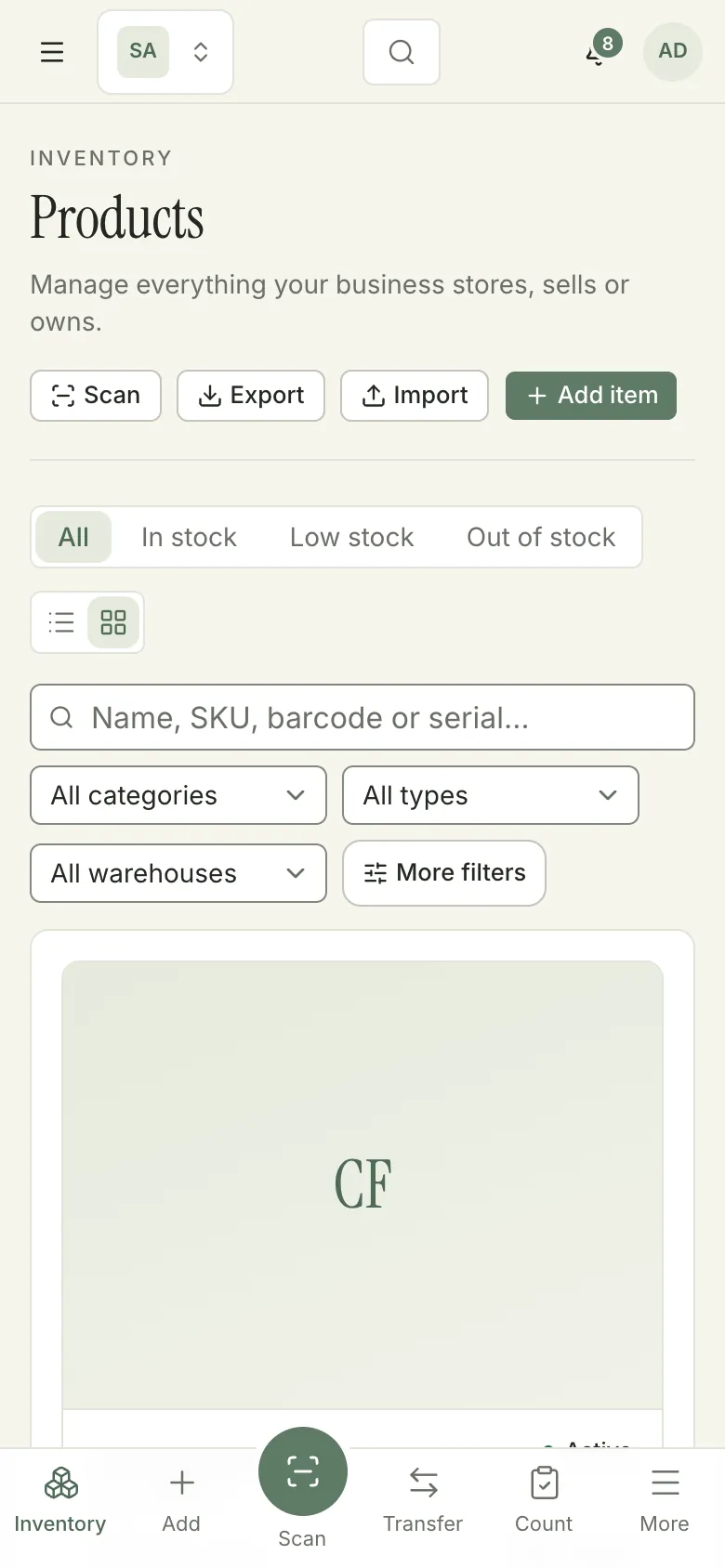
In your pocket
The same app in a phone browser. The bar along the bottom keeps the jobs you do on the shop floor one tap away.
Look for
- Inventory, Add, Scan, Transfer, Count and More
- The same filters as on a computer
Next step
Try it with sample data.
Create an account, choose the template closest to your trade and turn on sample data at the last step of setup. Every screen is there to explore before you enter anything of your own.